How to transcribe Zoom, Teams and Google Meet calls without a bot
Transcribe records your microphone and your PC's own sound, so it captures both sides of any call, in any app, with no bot in the participant list and no audio sent anywhere.
How it works
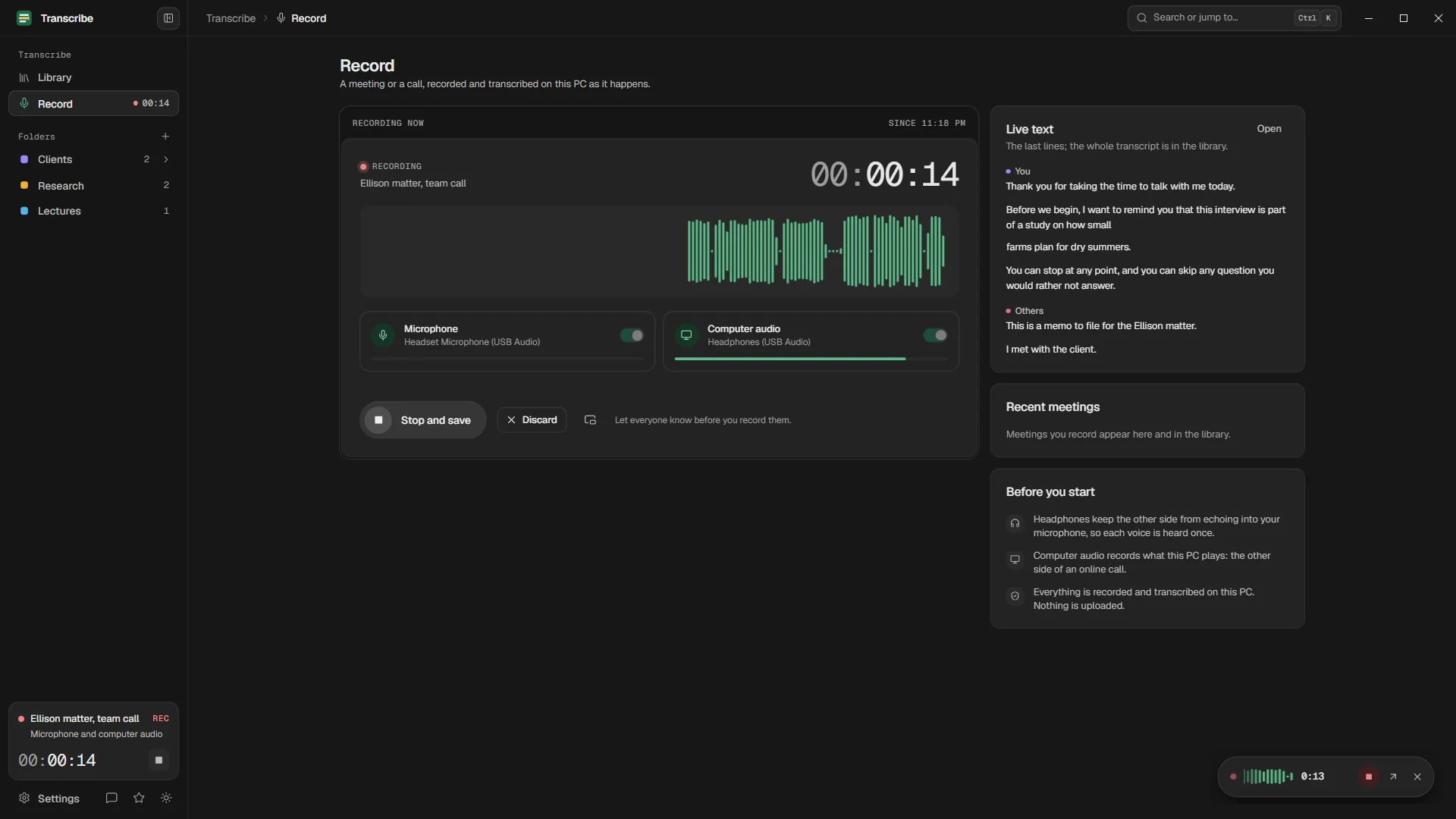
On a call, the other people's voices come out of your PC's speakers or headphones, and yours goes in through the microphone. Transcribe records both: the microphone, and the sound your PC plays (a technique called loopback recording). It does not care which app is playing that sound, so it works the same with Zoom, Microsoft Teams, Google Meet, Webex, Slack huddles and any other call app, in the desktop app or the browser.
Because the two arrive separately, Transcribe can tell you from the others without guessing. Speaker detection (Pro) can then split the others by voice.
Your PC
Recordings, transcripts, notes and settings never leave this box.
The internet
- Microsoft Store: checks your plan and shows prices, through Windows' own Store service. No data of the app's own is sent.
- No server that receives your audio
- No account, no sign-in
- No analytics, telemetry, crash reports or ads
Step by step
Recording calls is part of Transcribe Pro.
Join the call as usual
In the desktop app or the browser. Nothing changes in the call, and nobody has to admit a bot.
Open the Record page
Press Ctrl+2 in Transcribe. Choose your microphone and include the PC's sound.
Tell everyone, then start recording
Say that you are recording and that the transcript stays on your PC. Then press Start recording.
Follow the live text
The transcript appears a few seconds after people speak. The small floating recorder stays on top of the call window and is left out of screen sharing.
Stop and name the speakers
At the end, press Stop. The call becomes a transcript in your library. Name the speakers once and every line follows.
Export
Copy the text into the follow-up email, or export plain text, or Word and PDF with Pro.
Works with every call app
| Call app | Works | What to check |
|---|---|---|
| Zoom | Included | Desktop app or browser; the call sound plays through your PC as usual |
| Microsoft Teams | Included | Desktop app or browser |
| Google Meet | Included | In the browser, as Meet always runs |
| Webex, Slack huddles and others | Included | Any app whose sound plays on your PC |
| A recording the call app made | Included | Import the saved MP4 or M4A file: transcribing it works on the free plan too |
Compared with the call app's own transcription
Zoom, Teams and Meet can transcribe calls themselves. Those features depend on your plan and on the meeting's host or your organization turning them on, and they process the recording in the vendor's cloud.
Transcribe works the same in every app, keeps the recording and the transcript on your PC, and gives you an editor tied to the audio and exports in the formats you need. What it does not change is the rule every recording follows: everyone in the call has to know and agree.
Consent and the law
For the best results
- Wear a headset. It keeps the others' voices out of your microphone, so each side is recorded once and cleanly.
- Silence notifications. Chimes and alerts are part of the PC's sound and end up in the recording.
- Ask for one speaker at a time. Overlapping speech is hard for any transcription.
- Prefer a good connection over video. If the call breaks up, so does the transcript; turning video off helps the audio.
- Add names and jargon as custom words (Pro) before the call.
Questions
Will the other participants see a bot or an extra participant?
No. Transcribe records on your PC. Nothing joins the call.
Do I need Pro?
Recording calls inside the app needs Pro. Transcribing a recording made by your call app works on the free plan.
Does it work with the browser versions of Meet, Teams and Zoom?
Yes. Transcribe records whatever your PC plays, whichever app or browser plays it.
Can I record a phone call?
If the call plays through your PC, for example in a call app on Windows, Transcribe records it like any other call. It cannot record calls that stay on your phone.
Your recordings stay on your PC.
Free to download. Transcribes without an account, without uploads and without the internet.
Coming soon to the Microsoft Store · Windows 10 and 11