Who said what: speaker identification, explained
A transcript without speakers is a wall of text. Speaker detection splits it by voice so you can follow the conversation. Here is how it works, where it struggles, and how to do it on your own PC.
How speaker detection works
The technical name is speaker diarization: answering "who spoke when" without knowing in advance who the people are. Most systems, Transcribe's included, work in three steps:
- Split the recording into short stretches of speech, here the lines of the transcript.
- Describe each voice. A speaker model turns each stretch into a list of numbers, an embedding, that captures what the voice sounds like rather than what it says. Stretches spoken by the same person get similar numbers.
- Group the stretches whose numbers are close, and give each group a label: Speaker 1, Speaker 2, and so on.
In Transcribe this runs on your PC, after the transcription, using a speaker model installed with the app (WeSpeaker ResNet34). It works for imported files and recorded meetings alike.
Labelling speakers in Transcribe
Transcribe the recording
Import a file or record a meeting, as usual.
Run speaker detection (Pro)
Tell it how many people speak, or let it find out. Knowing the number makes the grouping more reliable.
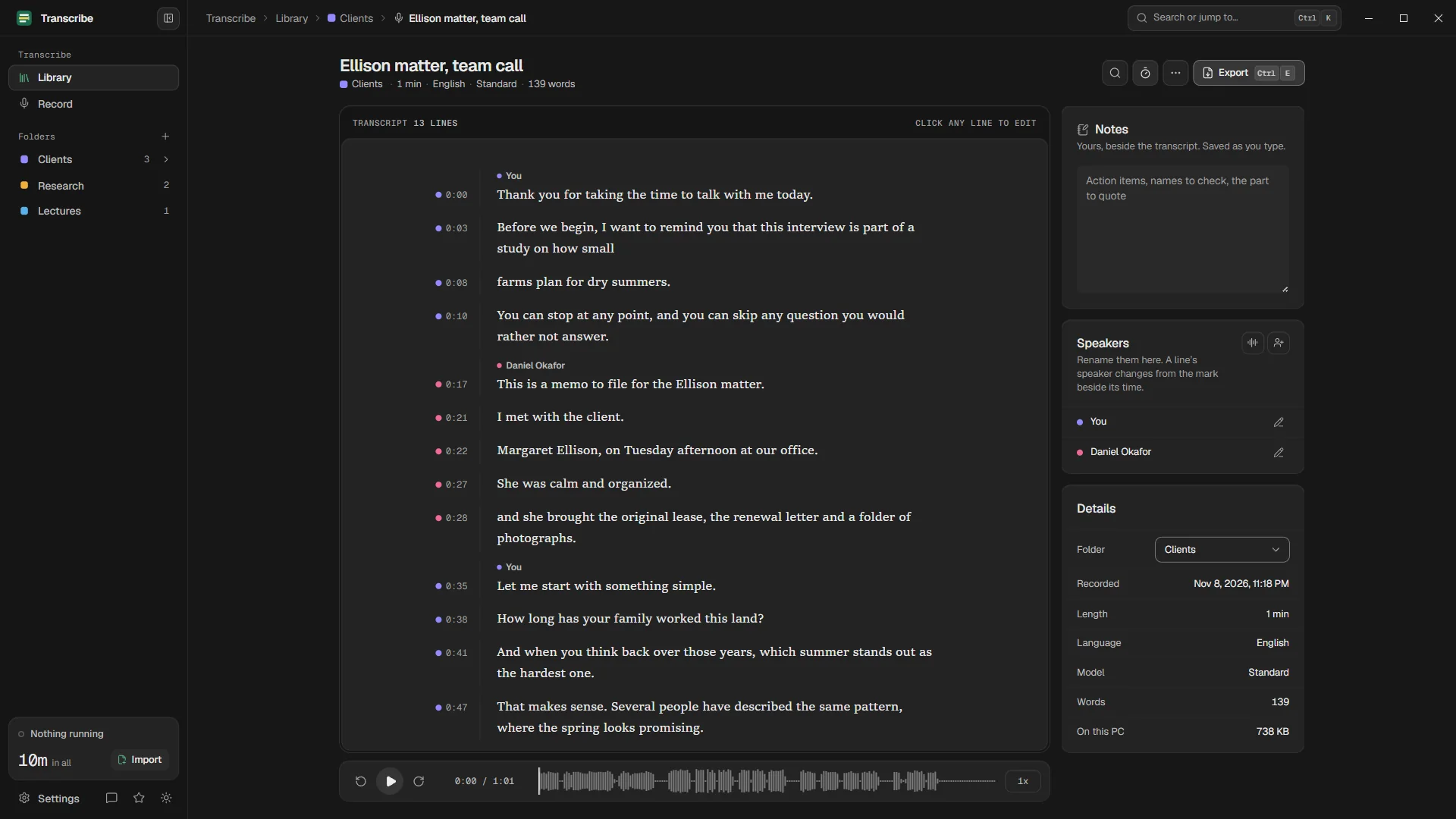
Name the speakers
Give each voice its name once, and every line follows, in the editor and in every export.
Fix single lines
Change a line's speaker from the mark beside its time, or press Shift+F10 while editing it.
Export with names
Plain text, SRT and VTT subtitles, and with Pro Word and PDF, all carry the names.
Recorded meetings start with an advantage
When you record a call with Transcribe, your microphone and your PC's sound arrive separately. So you and the others are told apart from the start, without guessing; speaker detection then only has to separate the other voices. Transcribing calls.
Where it struggles, and what helps
| Hard case | Why | What helps |
|---|---|---|
| People talking over each other | One stretch holds two voices | Ask for one speaker at a time; fix the line by hand |
| Similar voices | Their embeddings are close | Tell it the exact number of speakers |
| Very short turns | "Yes", "right": too little sound to describe a voice | Check short lines in conversations |
| A distant microphone | Room echo blurs the differences | Put the microphone near the speakers, or use headsets |
| Many speakers | More groups, more chances to mix two up | Name the main voices first, then fix the rest |
Voices are personal data
A description of a voice can identify a person, which is why it matters where speaker detection runs. In Transcribe it runs on your PC and keeps only the result, the speaker on each line. Nothing describing a voice is stored, sent, or compared with any other recording or any outside list. Your privacy policy says the same.
Questions
What is the difference between speaker diarization and speaker identification?
Diarization groups the parts of a recording by voice without knowing who the people are. Identification recognises a known person. In practice, transcription apps do diarization and let you put names on the groups.
How many speakers can Transcribe tell apart?
Tell it how many people speak, or let it find out. Recordings with a few clear voices work best; the more speakers, the more lines you will want to check.
Does speaker detection need the internet?
No. It runs on your PC with a model installed with the app, after the transcription.
Is speaker detection free?
Automatic detection is part of Pro. Naming speakers and setting each line's speaker by hand is free.
Your recordings stay on your PC.
Free to download. Transcribes without an account, without uploads and without the internet.
Coming soon to the Microsoft Store · Windows 10 and 11