Features
Everything Transcribe does, on your own PC
Speech recognition, an editor made for checking, meeting recording, speakers, a library with folders and notes, and clean exports. All of it runs locally, without an account.
Coming soon to the Microsoft Store · Windows 10 and 11
Transcription
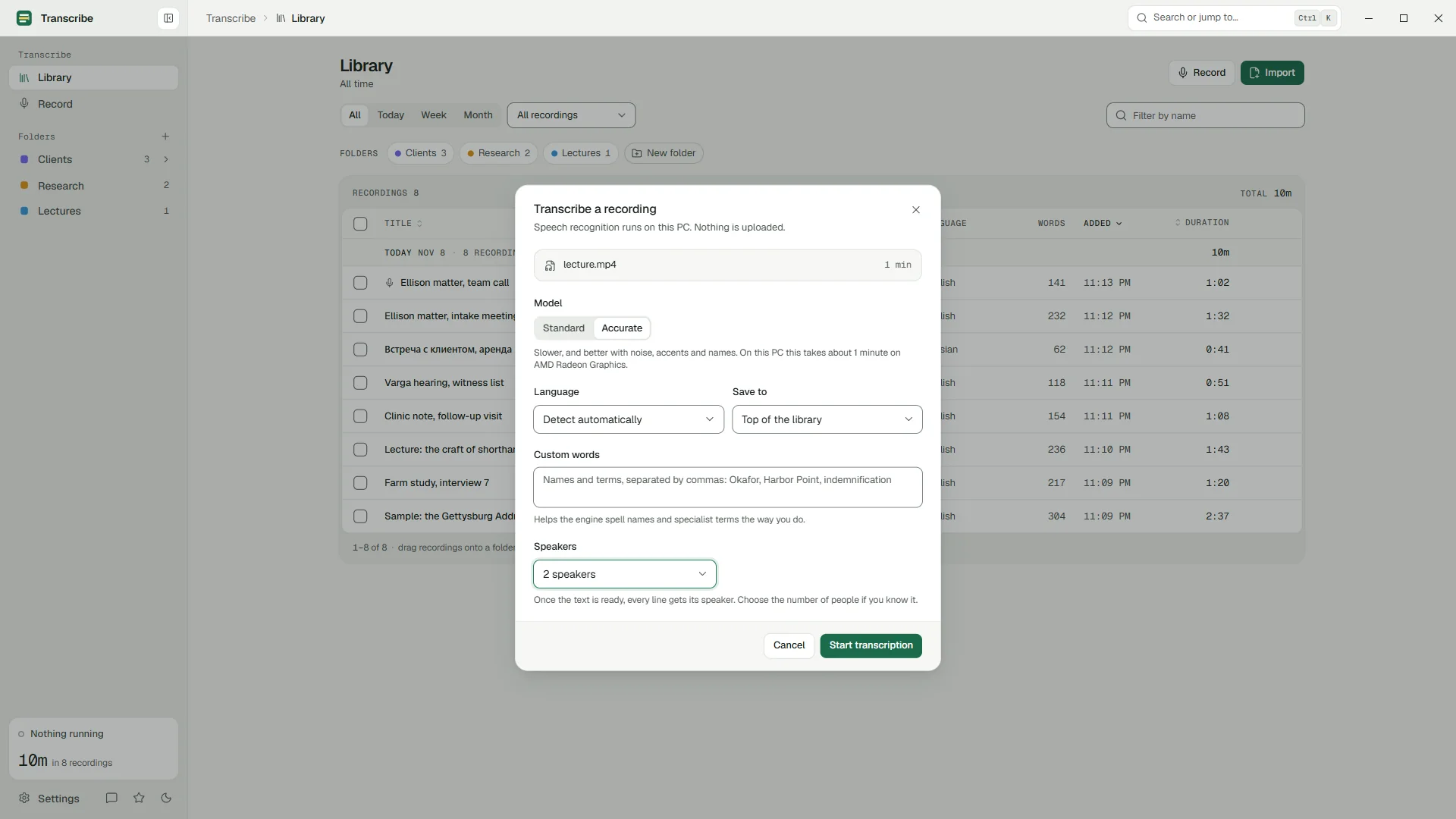
Speech recognition that runs on your PC
Transcripts are made by Whisper, a speech recognition model from OpenAI, running in whisper.cpp on your machine. Both models are installed with the app.
Standard model
Whisper small. Fast, and free without limits: about 17× real time on a laptop's integrated graphics.
Accurate model
Whisper large-v3-turbo. Slower, and better with noise, accents and names. 15 minutes free, unlimited with Pro.
100 languages
Detected automatically, or chosen by you when you already know.
Graphics card or processor
Uses a graphics card with a Vulkan driver for speed. Without one, the processor does the work.
Hours-long recordings
Jobs run in the background, survive closing the app or restarting the PC, and continue where they stopped.
Told when it is ready
A Windows notification says when a long transcript is done. It contains only the recording's name.
A queue for many files Pro
Drop a folder's worth of recordings and let them run one after another.
Custom words Pro
Give the engine the names and terms it should expect. On our names-heavy test it cut the Standard model's errors to zero.
Audio and video in
MP3, M4A, WAV, WMA, FLAC, MP4 and more. Drag and drop, or choose files.
The editor
Made for checking and correcting
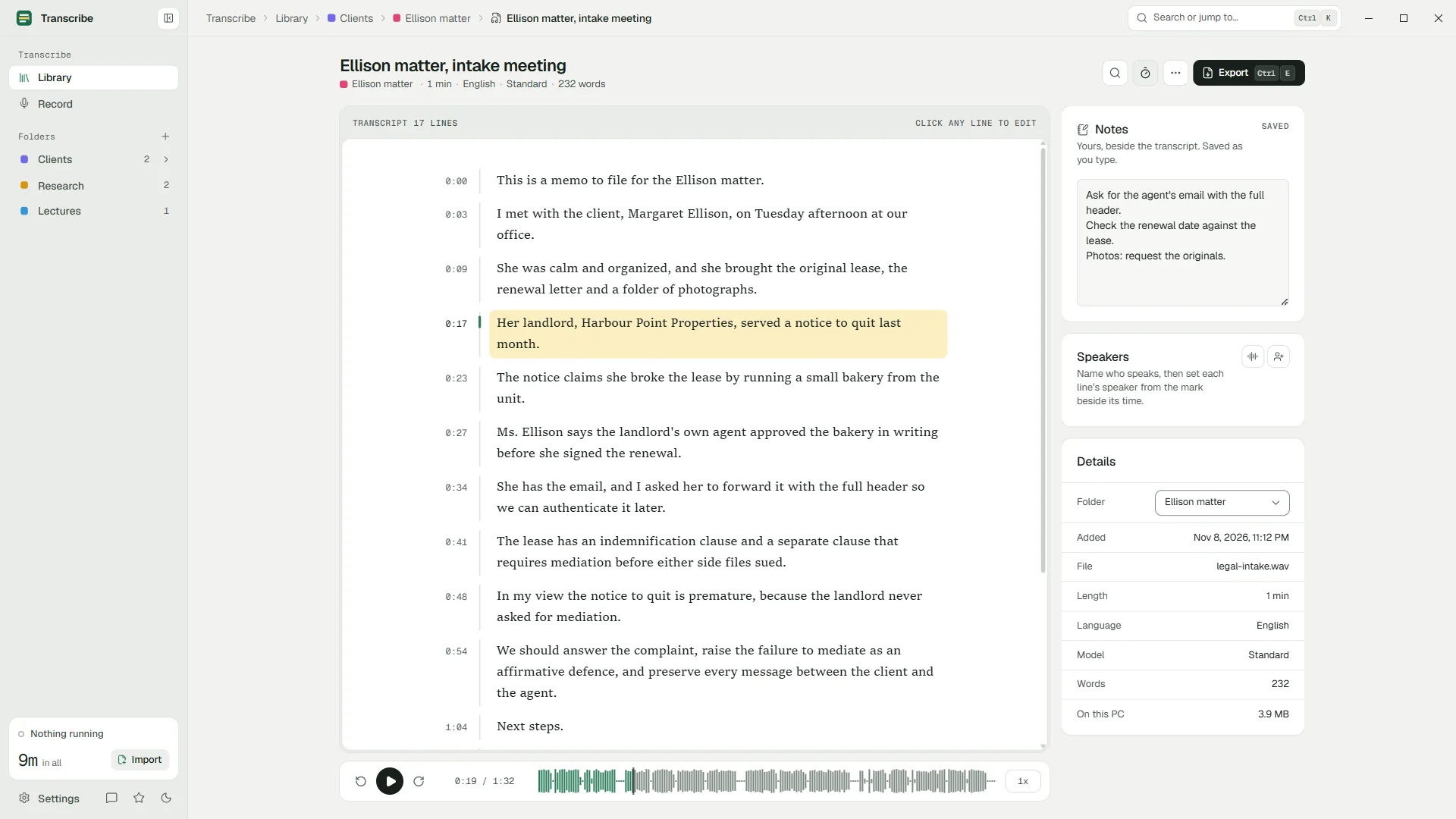
The transcript is tied to the audio, so checking a doubtful line takes one click instead of hunting through a timeline.
Click a line to hear it
Clicking a line or its timestamp plays from there. The line being played is highlighted and stays in view.
Edit in place
Fix any line where it is. Edits save themselves; undo and redo work across the whole transcript.
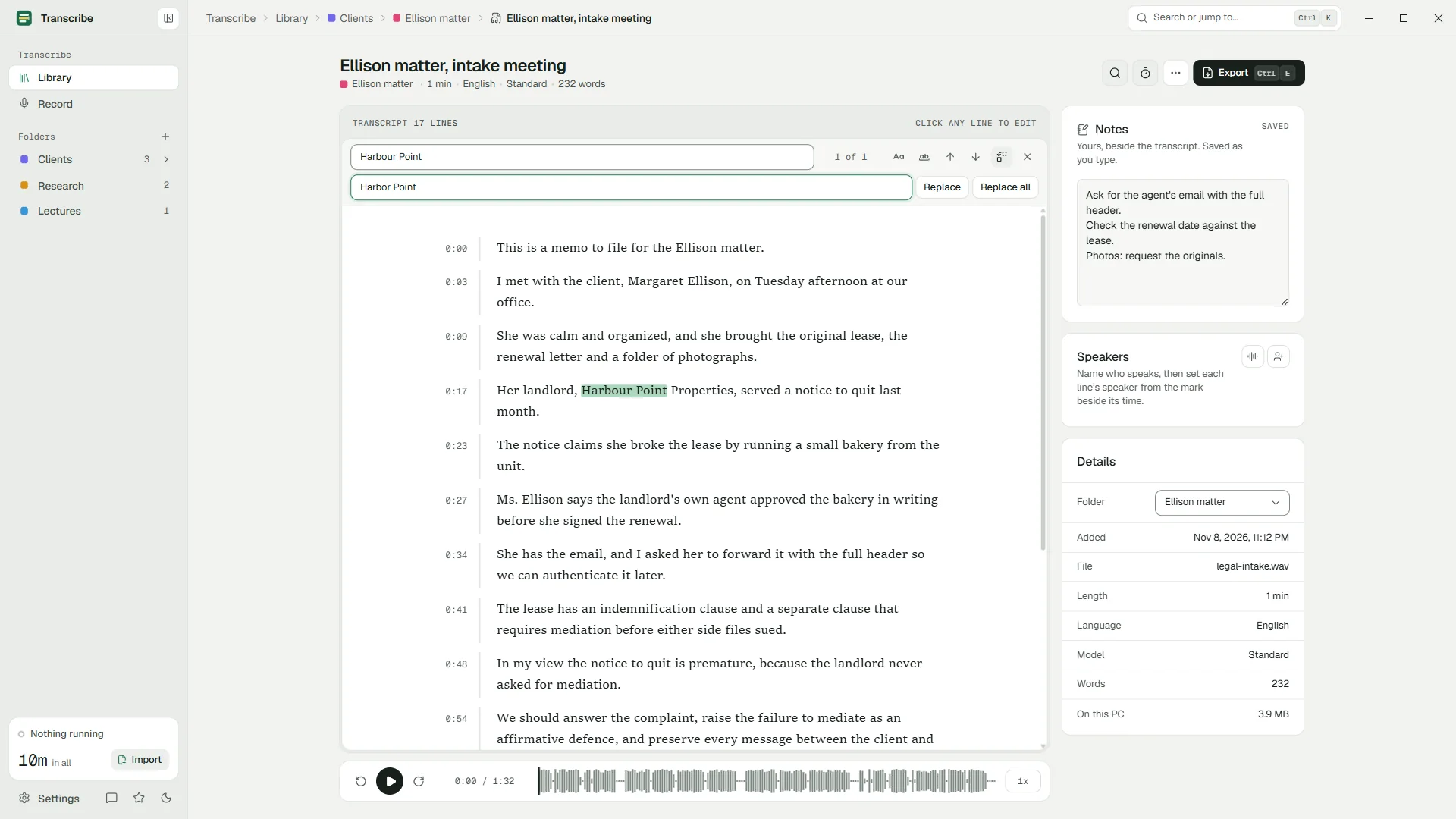
Find and replace
Change a misheard name everywhere at once, with Ctrl+H.
0.75x to 2x
Slow down for a hard passage, speed up through the easy ones, without leaving the keyboard.
Notes beside the text
Your own notes sit next to the transcript and save as you type.
Keyboard first
Play, pause, skip, edit and export without the mouse. Press F1 for the full list.
Pro
Record meetings and calls, with a live transcript
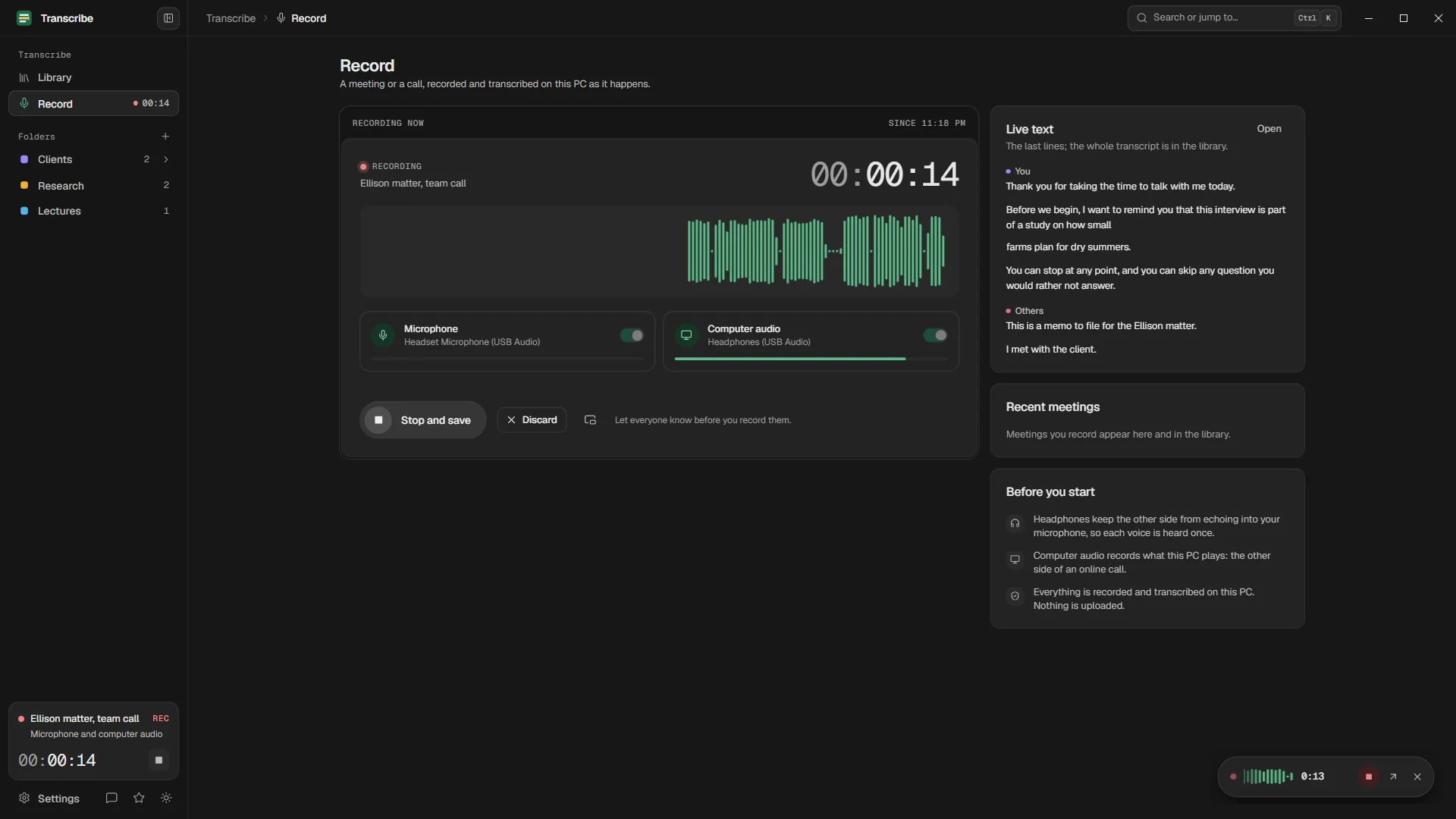
Record a meeting in the room or an online call from your microphone and your PC's own sound. The transcript appears a few seconds after people speak.
Microphone and PC sound
Captures you and the other side of any call app, so there is no bot to invite and nothing to install in the meeting.
You and the others, told apart
Name them once and every line follows, in the editor and in every export.
A small floating recorder
It stays above your other windows while you record. Screen sharing leaves it out.
Always visible
A red dot and a running clock show whenever the microphone is open. Windows asks before the app may use it.
Stays on this PC
The recording and the transcript become an ordinary item in your library. Nothing is sent anywhere.
An ordinary transcript after
When you press Stop, the meeting becomes a transcript in your library like any other, ready to check, edit, search and export.
Speakers
Who said what
With Pro, speaker detection labels every line with its speaker. Tell it how many people speak, or let it find out. It runs on your PC, after the transcription, for imported files and recorded meetings alike.
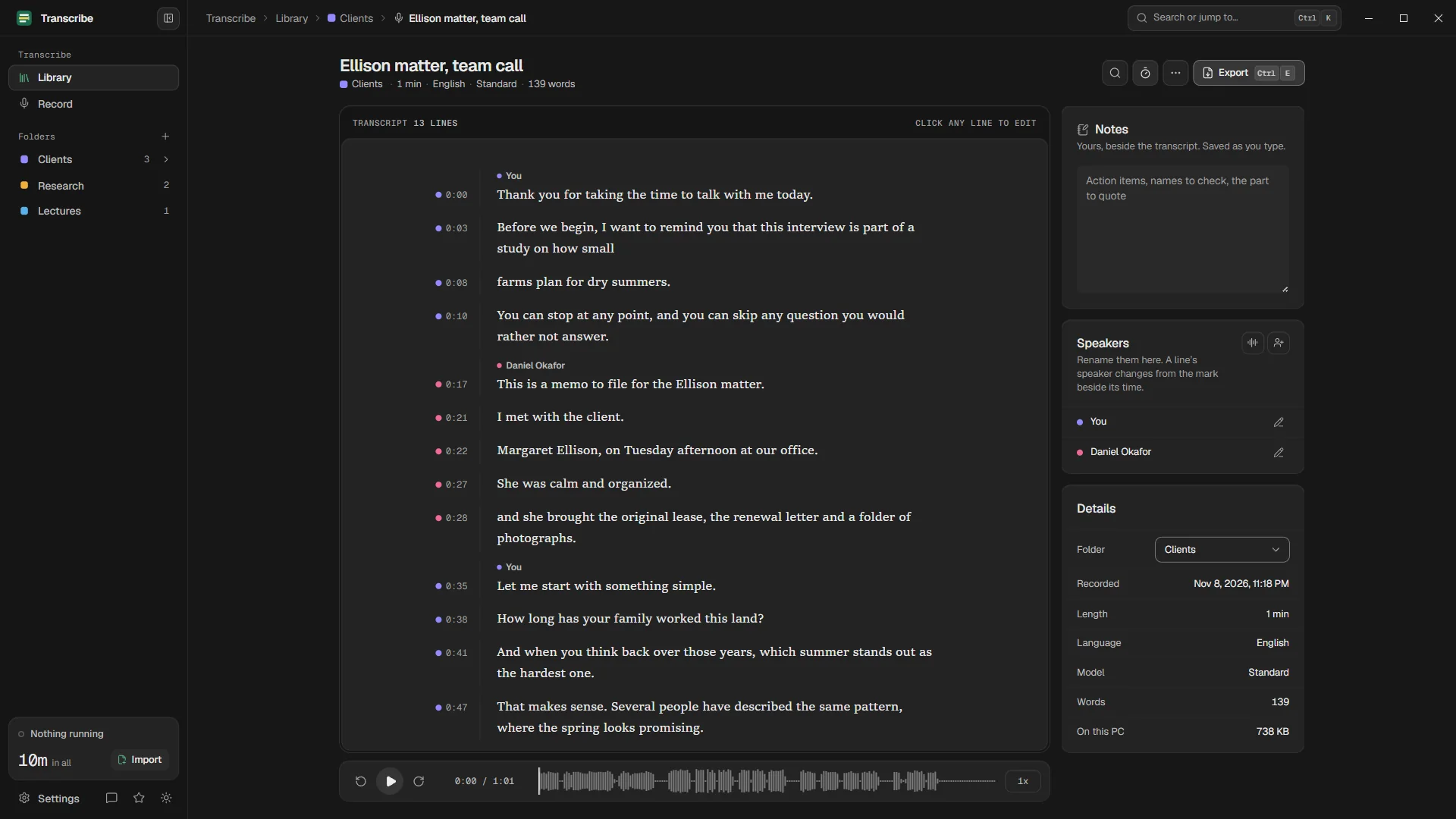
On Free you can still name the speakers and set each line's speaker by hand, from the mark beside its time. However the names get there, they appear in plain text, subtitles, Word and PDF. How speaker detection works.
Library
Organized your way, searchable when you need it
Every recording lives in one library on your PC, grouped by day, with filters for the period, the kind and the name.
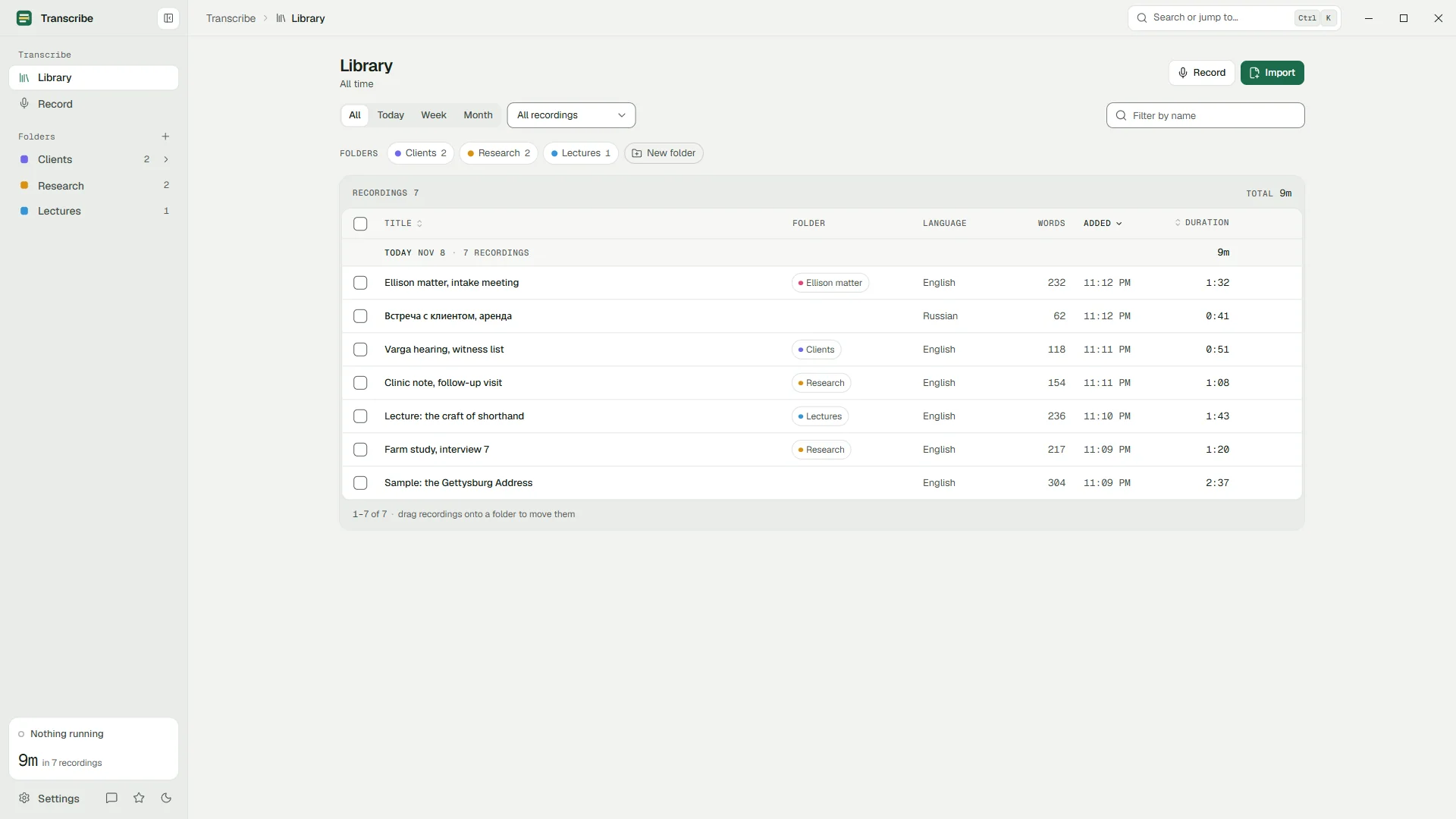
Folders and sub-folders
Keep clients, courses and projects apart. Drag recordings onto a folder, or move many at once.
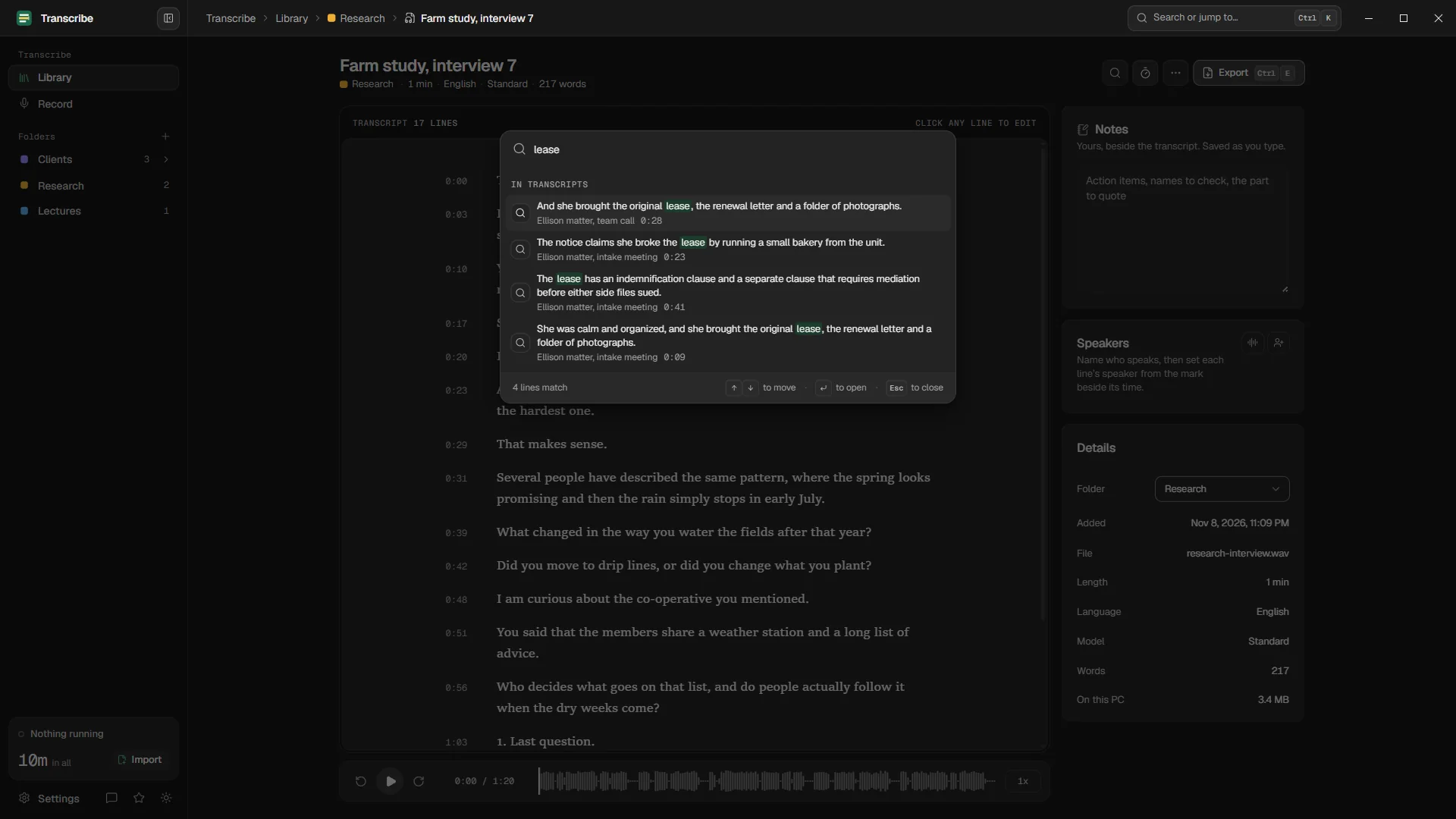
Find in a transcript
Search the open transcript with Ctrl+F and jump between matches.
Search every transcript Pro
One search across your whole library, with Ctrl+K, straight to the moment it was said.
Export
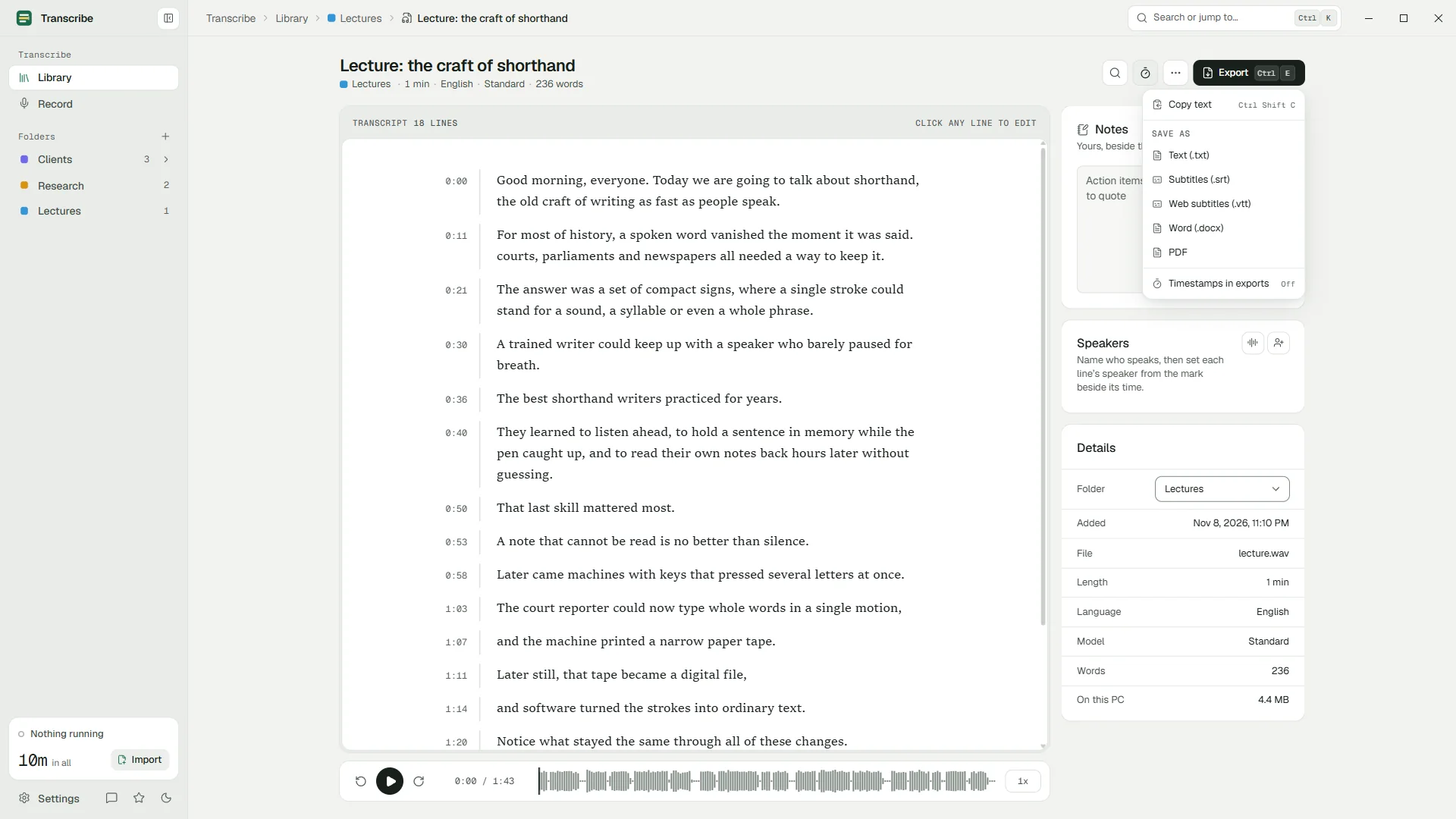
Clean exports, with speaker names
Text reads in paragraphs, even in a long talk without pauses. Speakers' names come along wherever there are any.
| Format | What you get | Plan |
|---|---|---|
| Copy | The whole transcript on the clipboard, with Ctrl+Shift+C | Free |
| Plain text (.txt) | With or without timestamps, in paragraphs | Free |
| SRT subtitles | Numbered cues with start and end times, for video players and editors | Free |
| VTT subtitles | WebVTT cues, for the web and most video platforms | Free |
| Word (.docx) | A clean document with a title block | Pro |
| The same document, ready to send or print | Pro |
Keyboard
Every shortcut
Press F1 in the app to see them any time.
General
| Ctrl+O | Import recordings |
| Ctrl+K | Search transcripts and commands |
| Ctrl+1 | Library |
| Ctrl+2 | Record a meeting |
| Ctrl+, | Settings |
| Ctrl+B | Collapse or expand the sidebar |
| Ctrl+Shift+T | Switch light and dark |
| F1 | Keyboard shortcuts |
| Esc | Close a dialog, the find bar or Settings |
Library
| Up/Down | Move between recordings in the list |
| F2 | Rename the recording or folder in focus |
| Del | Delete the recording in focus (with Undo) |
| Shift+Click | Select a range of recordings |
Transcript
| Ctrl+F | Find in this transcript |
| Ctrl+H | Find and replace |
| Ctrl+Z | Undo an edit |
| Ctrl+Y | Redo |
| Ctrl+T | Show or hide timestamps |
| Ctrl+E | Export |
| Ctrl+Shift+C | Copy the whole transcript |
| Enter | Go to the next line while editing |
| Ctrl+Enter | Play from the line you are editing |
| Shift+F10 | Choose who said the line you are editing |
Playback
| Ctrl+Space | Play or pause |
| Alt+Left | Back 5 seconds |
| Alt+Right | Forward 5 seconds |
| Ctrl+[ | Slower |
| Ctrl+] | Faster |
Requirements
What you need
- Windows
- Windows 10 version 1809 or later, or Windows 11, 64-bit
- Memory
- 8 GB recommended for the Accurate model
- Disk space
- About 1 GB for the app and its speech models, plus your recordings
- Graphics
- Optional. A graphics card with a Vulkan driver makes transcription faster; without one the processor does the work
- Microphone
- Only to record meetings and calls
- Internet
- Not needed to transcribe. The app only contacts the Microsoft Store to check your plan and show prices
Questions
Questions people ask
Which speech recognition engine does Transcribe use?
OpenAI's Whisper models, running in whisper.cpp on your PC: Whisper small for the Standard model and Whisper large-v3-turbo for the Accurate model. They are installed with the app; nothing downloads later.
Do I need a graphics card?
No. Without one, the processor does the work: on our test laptop the Standard model ran at about 3× real time on the processor, against about 17× on its integrated graphics. Any graphics chip with a Vulkan driver helps, including the ones built into many laptops.
Can I transcribe a video file?
Yes. Drop in an MP4 or another video and Transcribe uses its sound. Export SRT or VTT subtitles to put the words back on the video.
Does it summarize meetings with AI?
No. Transcribe gives you the words as they were spoken, tied to the audio, and leaves the summary to you, in the notes beside the transcript or in the text itself. Nothing leaves your PC.
Are all 100 languages available with both models?
Almost. Cantonese needs the Accurate model; every other language works with both. Accuracy varies by language and is best in widely spoken ones.
Your recordings stay on your PC.
Free to download. Transcribes without an account, without uploads and without the internet.
Coming soon to the Microsoft Store · Windows 10 and 11